SharePoint Web Parts Essentials
 CNX Copybara
Copy pages, lists, libraries, navigation links and themes from one SharePoint site to another, review every copy before it runs, and undo it afterwards.
Overview
CNX Copybara moves SharePoint content where it needs to be. Choose what to copy on the left (FROM), choose where it goes on the right (TO), and review everything in a side panel before anything is copied. Pages, lists and libraries, navigation links and the site theme all work the same way, between two sites or within one.
Nothing is replaced unless you say so. The site you copy from never changes, and a copy that meets a name already in use gets a new one. Every copy is listed in Your copies, where you can follow it while it runs, open what it created, and Undo it: pages, files, items and lists go to the destination's recycle bin, replaced files get their previous version back, added navigation links are removed, and a replaced theme comes back.
The page you're on is the FROM site by default. Any other site is found by search, by recent use, or by pasting its address; and with Other tenants turned on, by signing in to another Microsoft 365 organization. When your organization has connected the SharePoint AI Gateway, pages and navigation link names can also be translated while they're copied, so one site becomes the French or Spanish version of another.
Features
Two sites, side by side
The FROM column shows what the source site has, and the TO column what the destination already has, so duplicates are visible before anything is copied. The same four tabs (Pages, Lists and libraries, Navigation and Theme) serve both. The TO card lists what you're allowed to copy there, read from your permissions on that site, and the swap button between the cards turns the copy around.
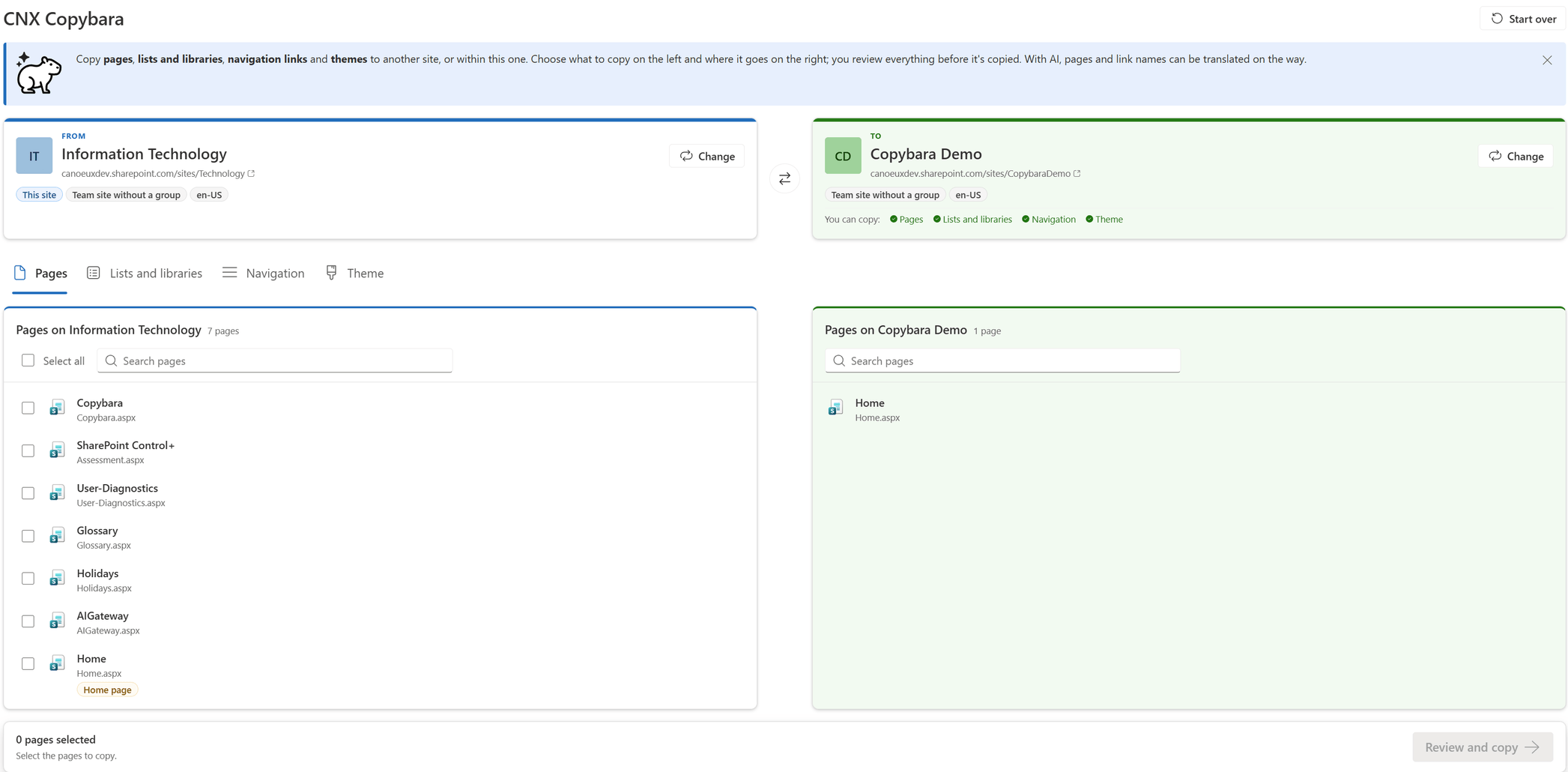
Colors say what's next: the destination card stays orange until you choose a site, then turns green. Select Choose a site, or Use the same site to copy within one site.

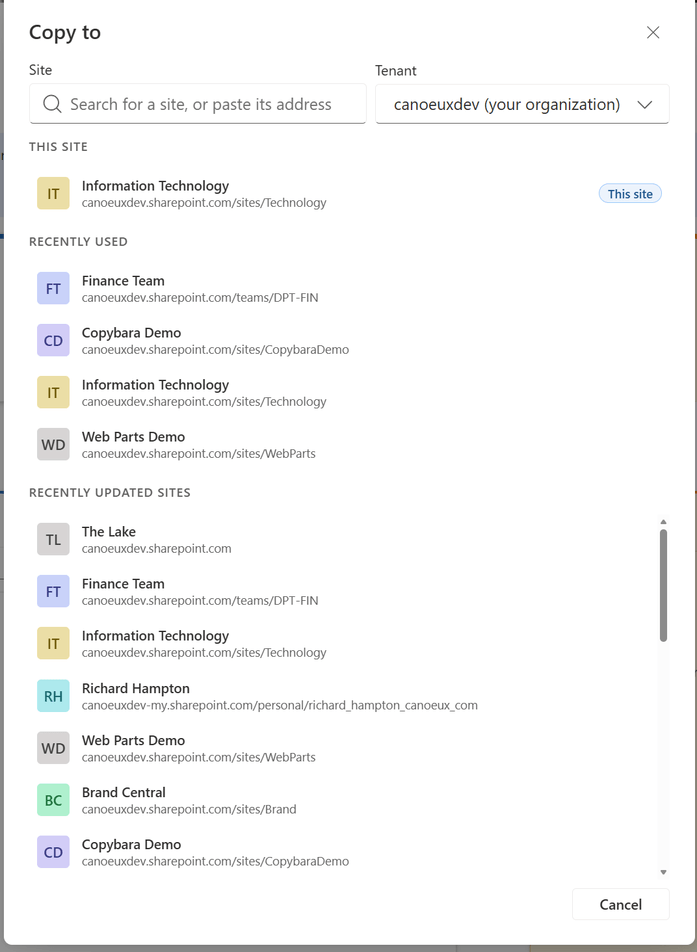
Find a site by searching for it, by picking one you used recently, or by pasting an address, including the address of a page, a list or a file on it. With Other tenants turned on, the Tenant list also offers to sign in to another Microsoft 365 organization.
Pages, with what they show
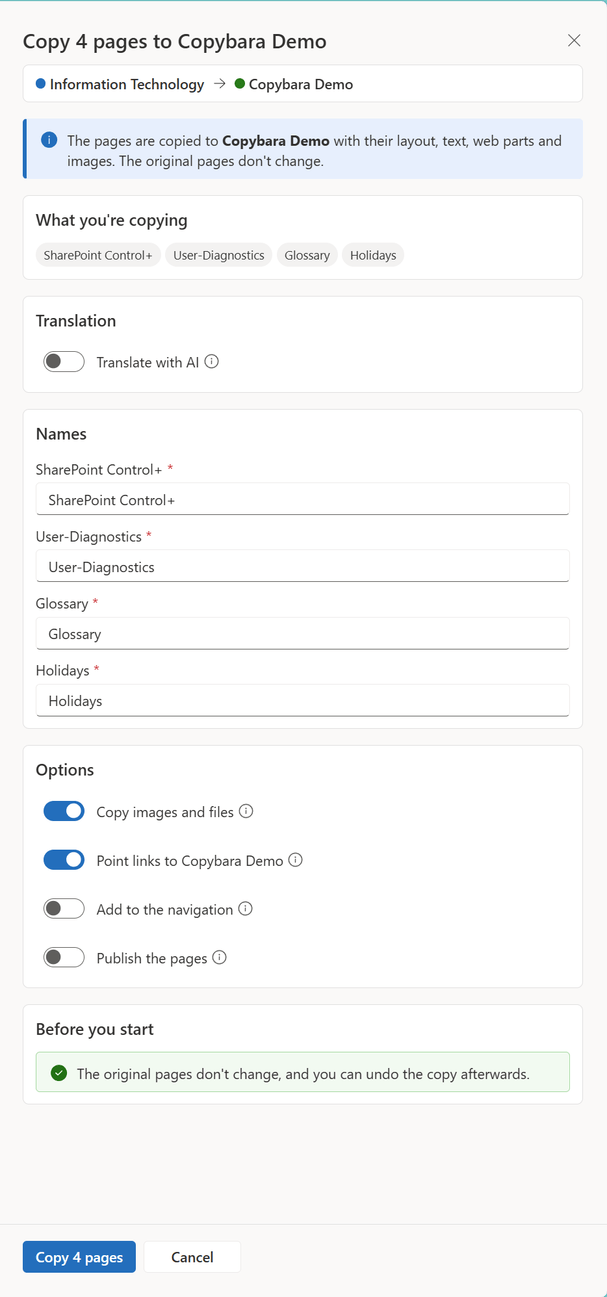
Copy modern pages and news posts with their layout, text and web parts. Copy images and files brings the pictures and documents a page shows to the destination site, and the Point links to option rewrites the links and web part references that pointed at the source site. Keep the folders recreates the Site Pages folders, and you choose whether each page is published or saved as a draft.
Translate while you copy
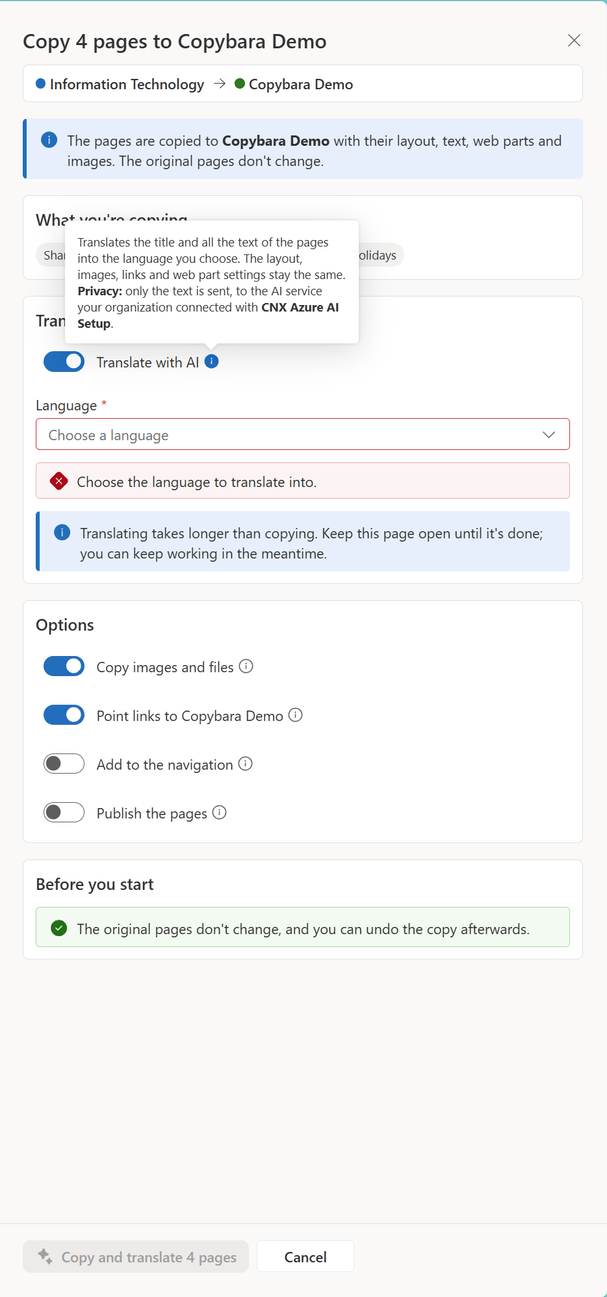
Turn on Translate with AI, choose a language, and the title, description and all the text of each page arrive translated, with the layout, images, links and web part settings untouched. Only text is sent to the AI service, and on the same site with SharePoint page translation turned on, the copy can be saved as the linked translation of the original page.
Whole lists, or just a few files
Copy a list or library with its columns, views, content and version history, or select Choose folders and files to open it in place and pick only what you need. Lookup columns point at the copies of the lists they read from, managed metadata and people are matched on the destination, and Versions to copy replays up to 100 versions oldest first so the copy keeps its history.
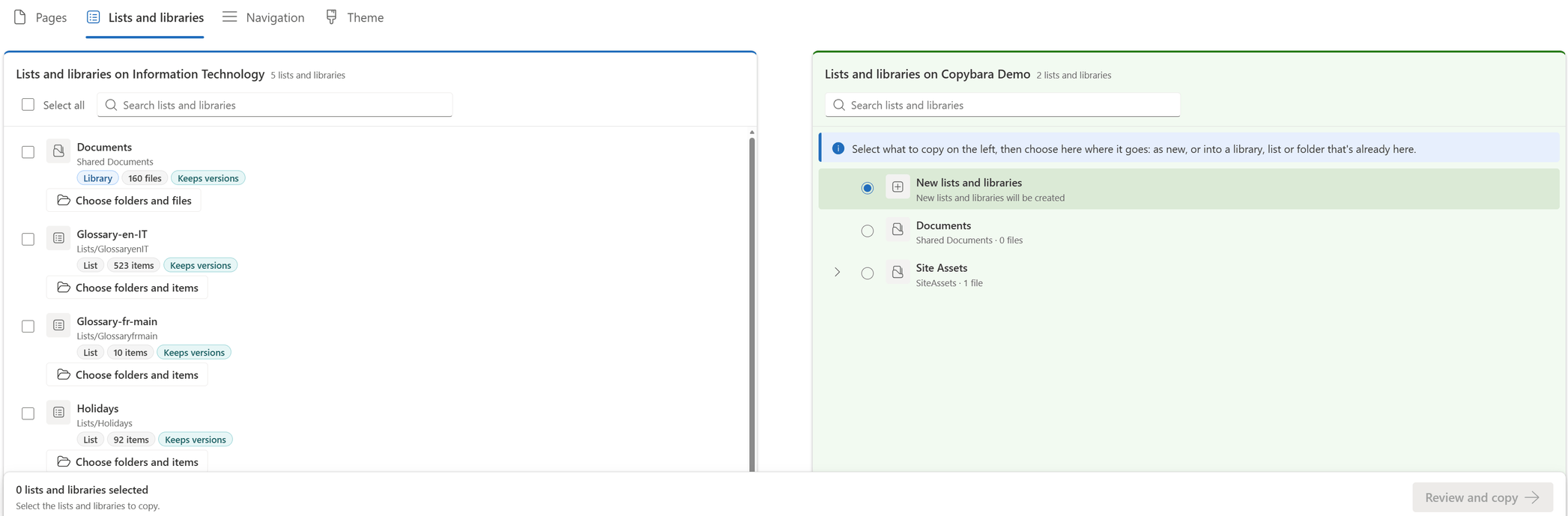
Open a library inside the FROM column to browse its folders, search within one, and check the folders, files or items to copy. A checked folder comes with everything in it.
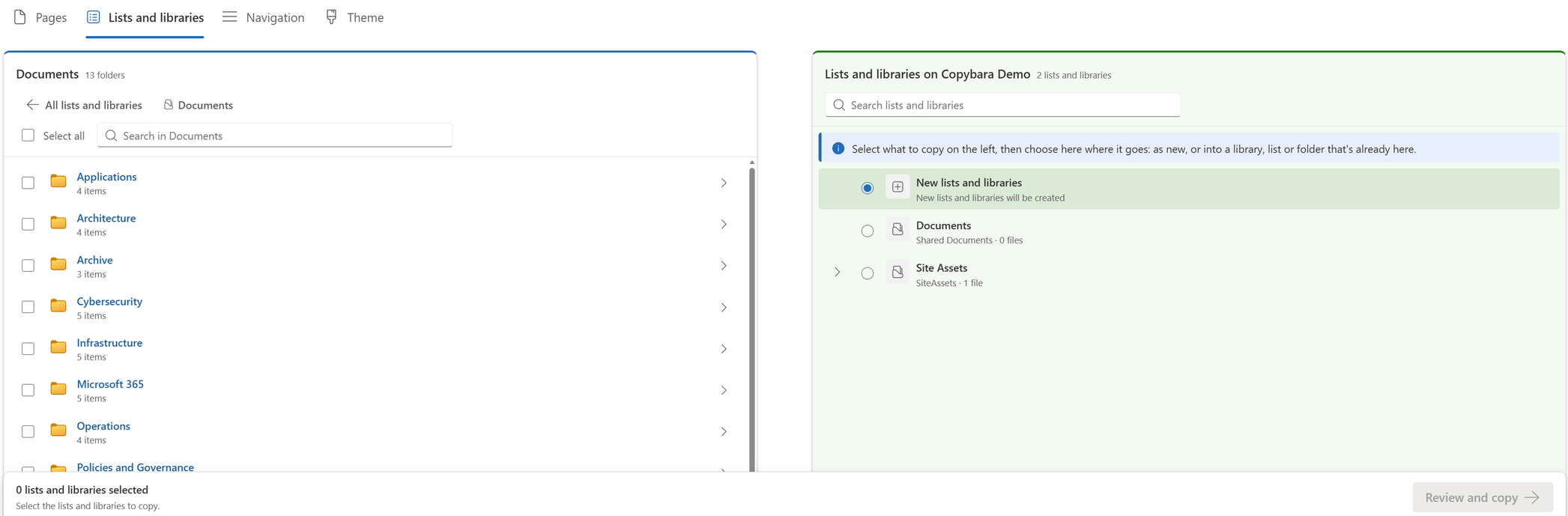
The TO column is where you choose where it all lands. A new library is the default, with the name it will get, which you can change before the copy runs.
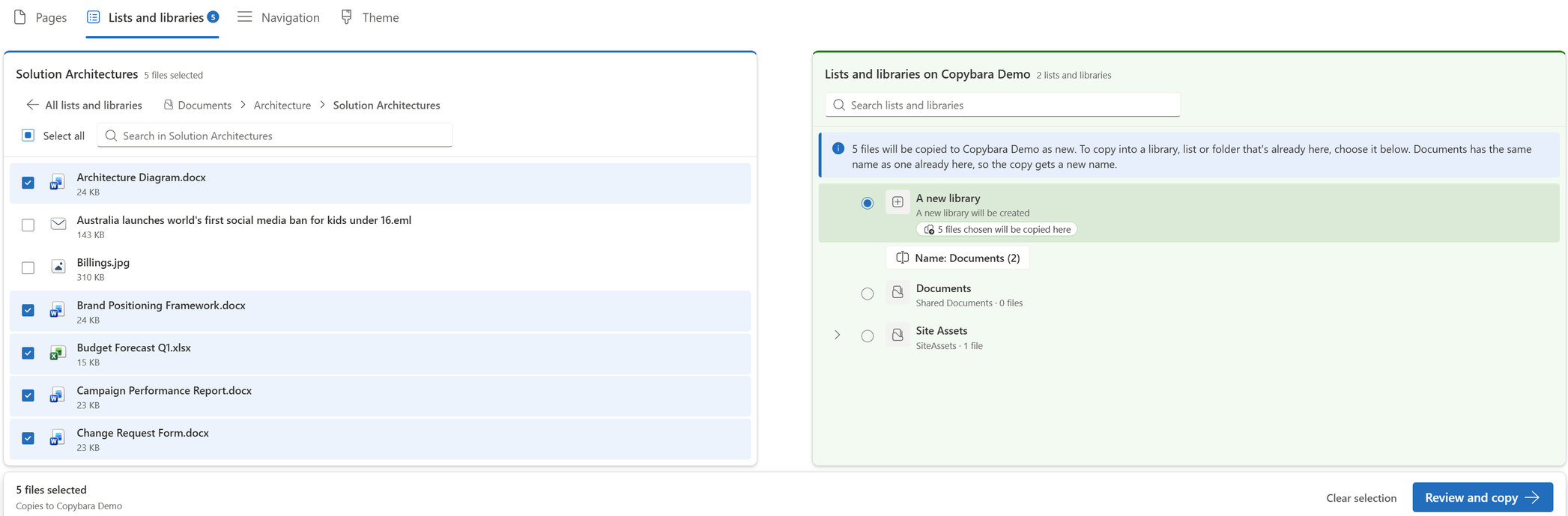
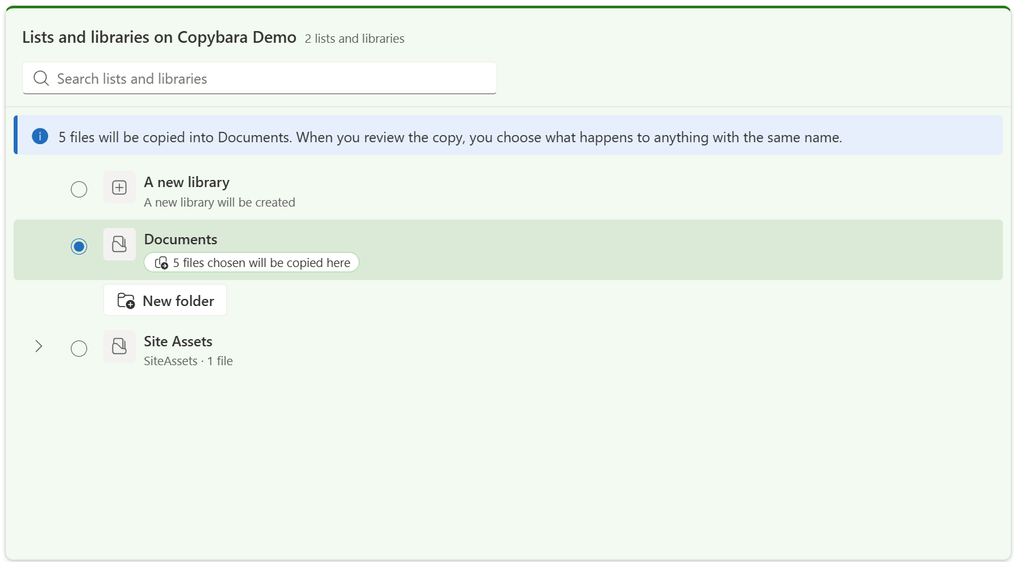
Or choose a list, library or folder the destination already has, as deep as its folders go, and add one with New folder. The message at the top always spells out what will happen.
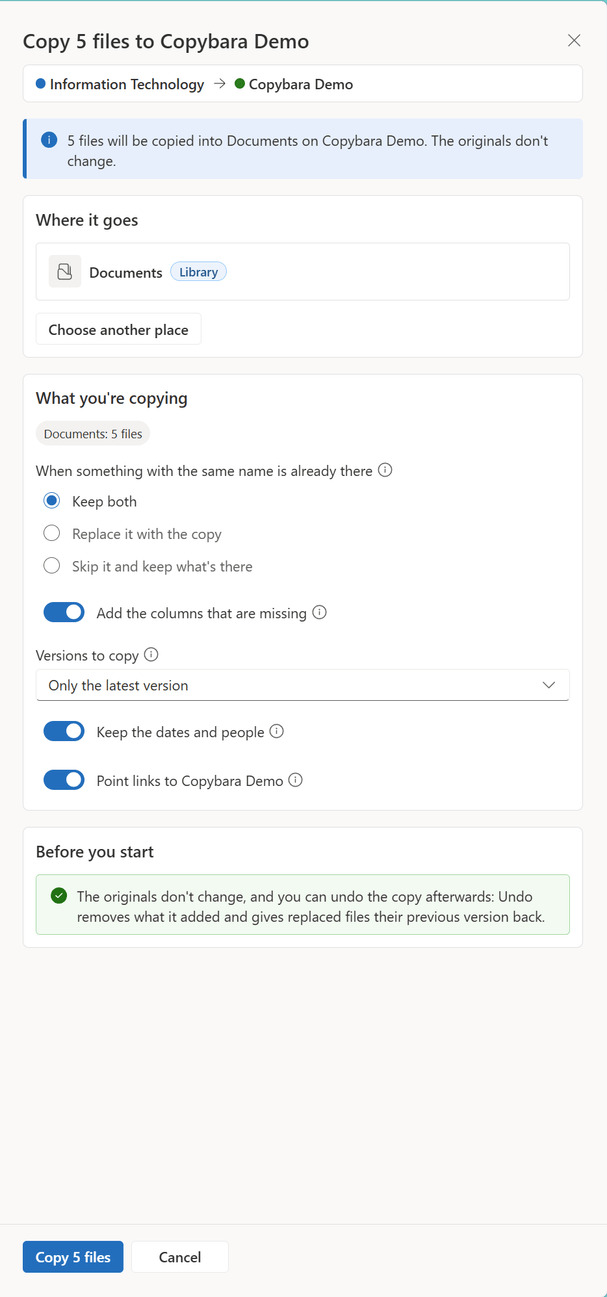
The review confirms where it goes and what happens when something with the same name is already there: Keep both, Replace it with the copy or Skip it and keep what's there. It also warns, before you start, when a replacement couldn't be undone.
Navigation links, where you want them
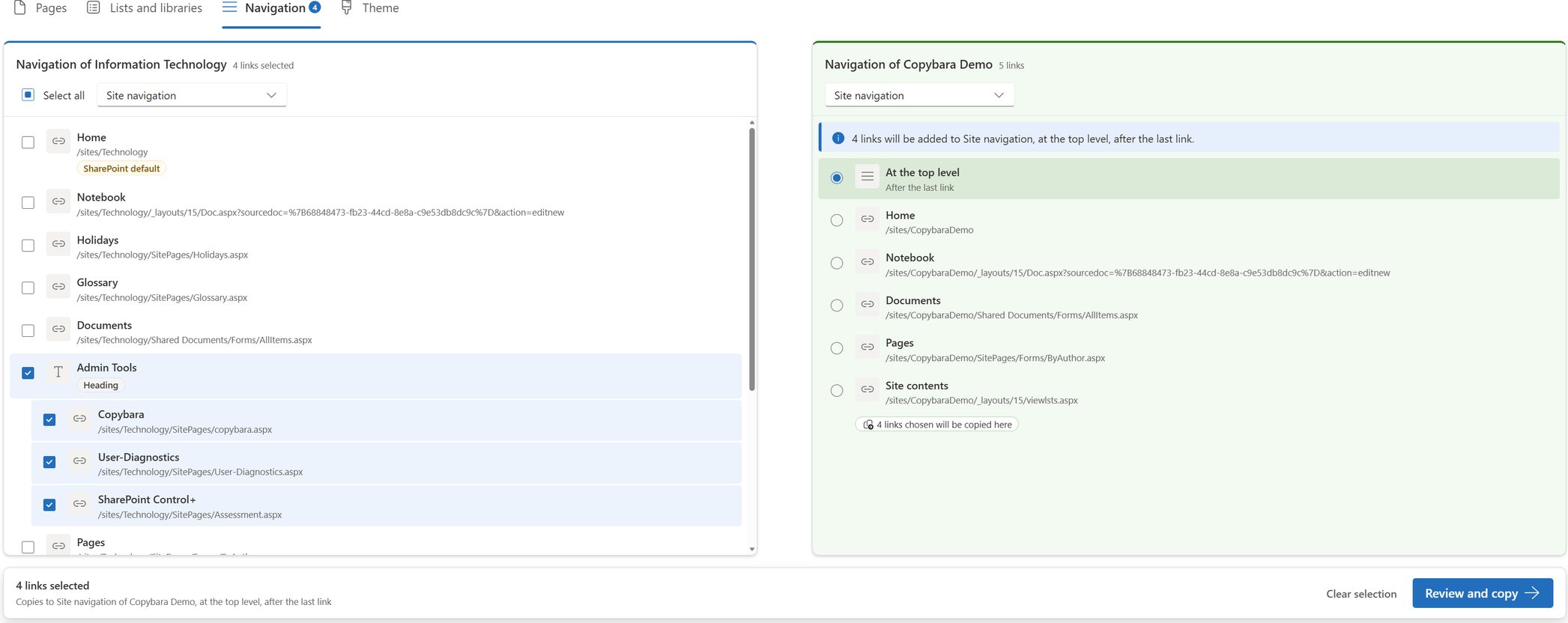
Copy links and headings from the site navigation or the top navigation, with their sub-links and in their original order. Links SharePoint adds to every site are marked SharePoint default and left out of Select all. In the TO column you choose the exact place: at the top level, right after a link, or under one.
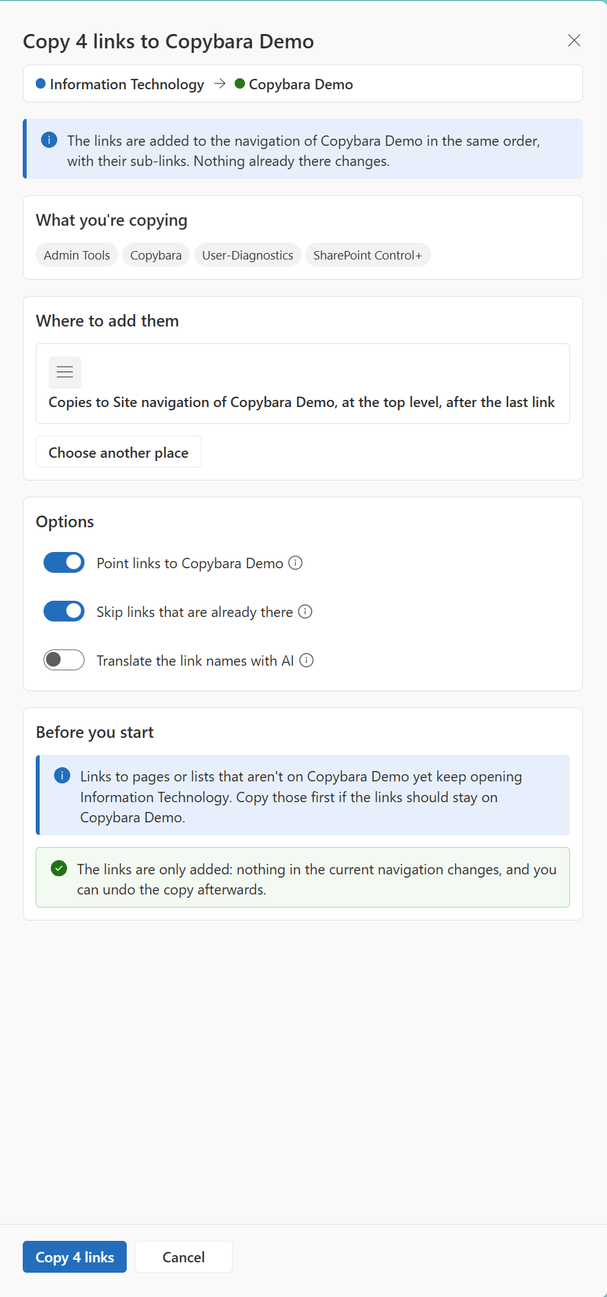
The review offers Skip links that are already there, the Point links to option so the links open the destination site, and Translate the link names with AI. Links to pages that aren't on the destination yet are reported, so you can copy those pages too.
Themes, previewed first
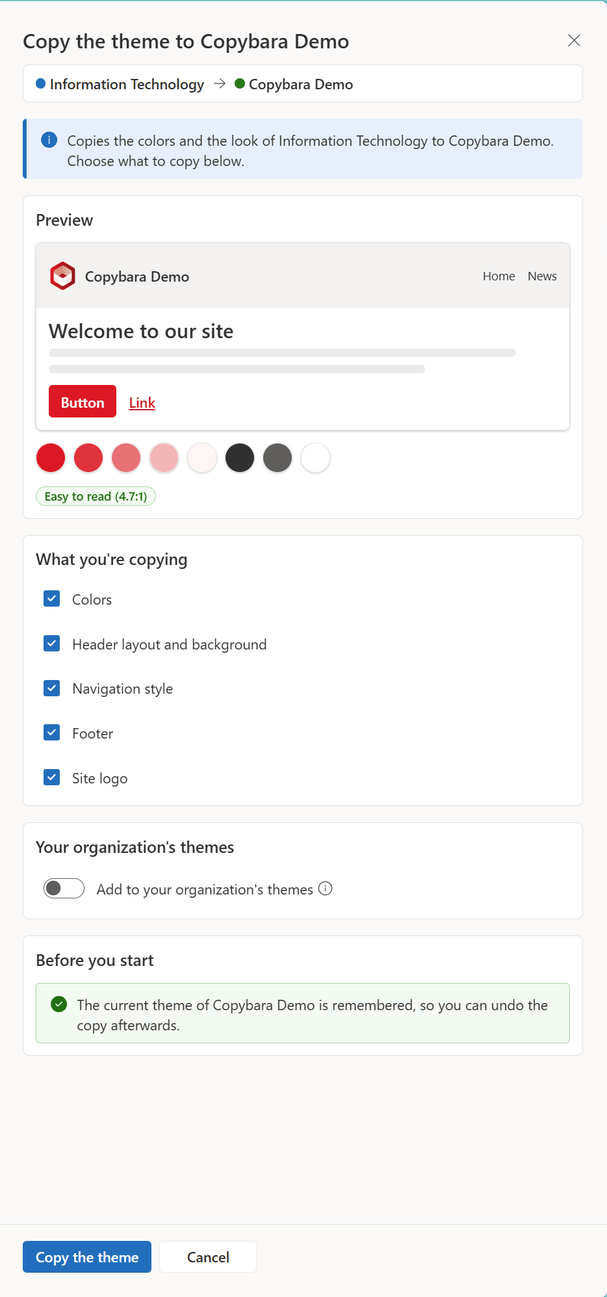
The Theme tab shows both sites' colors with a preview, whether white text on the main color is easy to read, and the header, navigation and footer settings. A theme changes a site for everyone, so Copybara asks once more before it applies the colors.
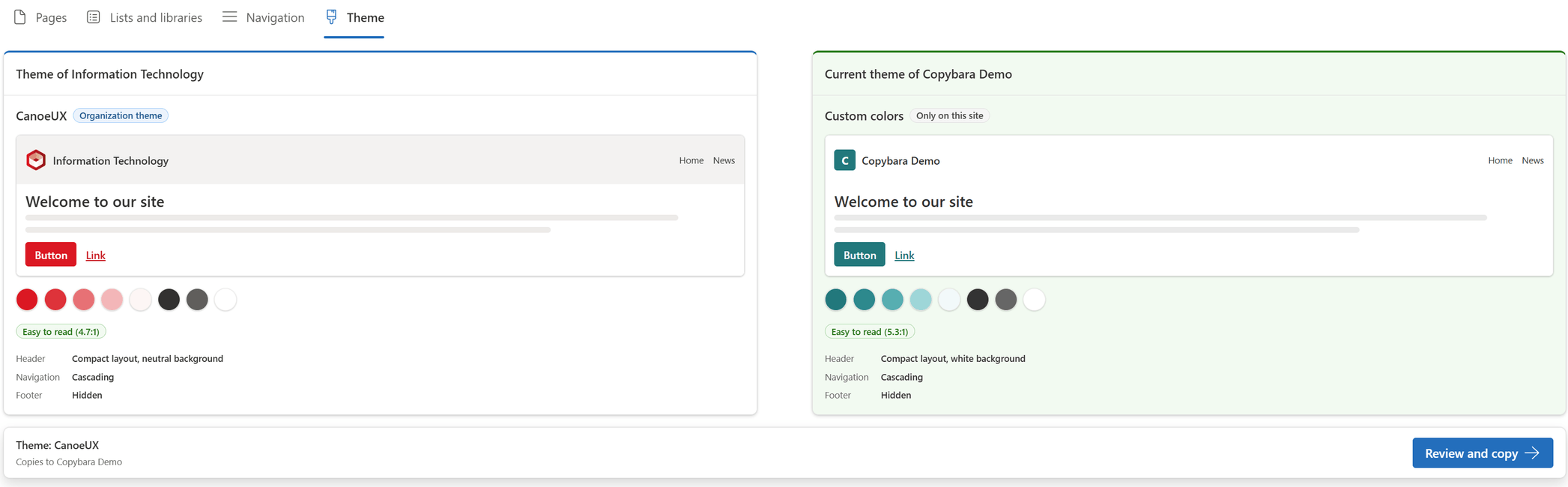
Choose what to copy: Colors, Header layout and background, Navigation style, Footer and Site logo. SharePoint administrators can also add the theme to the organization's themes under a name of their own.
Follow every copy, and undo it
Copies run one at a time, in your browser. While one runs, the bar pinned to the bottom of the screen names it, says what it's doing and how many are waiting, and Show progress jumps to its card in Your copies.

When it's done, the card lists what was created as links to open in a new tab, with notes such as Saved as a draft or 2 files skipped, and the findings worth knowing about. Undo takes it all back, and Start over clears the page and begins again.

Configuration
After the CanoeUX SharePoint Web Parts Essentials package has been deployed to your SharePoint tenant, you can add CNX Copybara to a modern SharePoint page. It needs no list and no setup to copy within your own organization; the property pane is where you turn on copying to and from other tenants, and AI translation.
Step 1: Edit the page
Go to the SharePoint page where site owners will do their copying, such as a page of an administration site, and select Edit.
Important: The Edit button is in the upper-right corner of the page. If you don't see it, you don't have permission to edit the page: ask the site owner or a site administrator for edit permissions.
Step 2: Add the web part
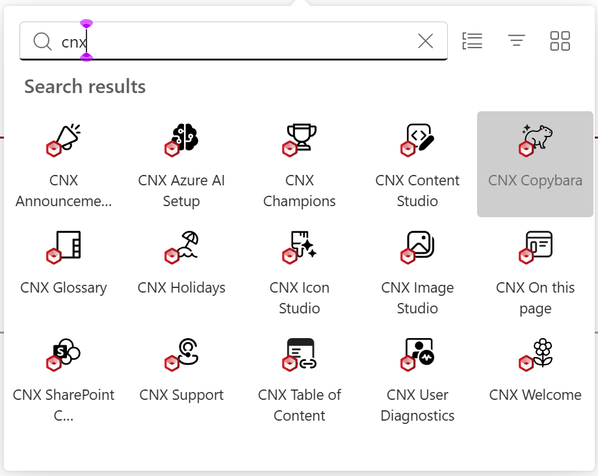
Hover over the section where you want the web part to appear, select + Add a new web part, search for CNX, and then select CNX Copybara.
Tip: Copybara is a full-page tool: it uses the full width of the page and hides the page's comments. Give it a page of its own, in a one-column or full-width section, so the two columns have the most room.
Step 3: Open the property pane
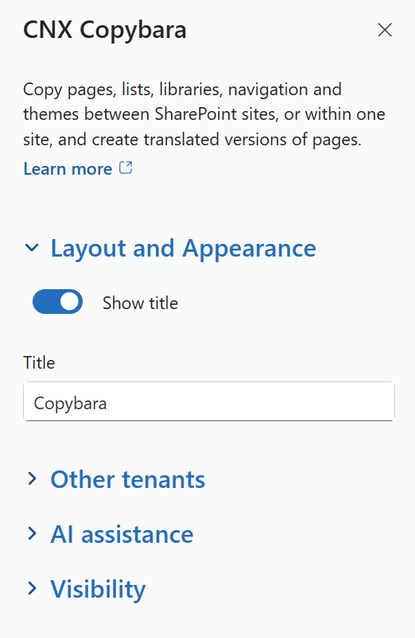
Select Open settings in the web part, or Edit properties in its toolbar. The property pane has three sections: Layout and Appearance, Other tenants and AI assistance.
Step 4: Configure the Layout and Appearance section
Expand Layout and Appearance. If the page already has a heading, turn off Show title. Otherwise, edit the Title shown above the two columns.
Step 5: Configure the Other tenants section
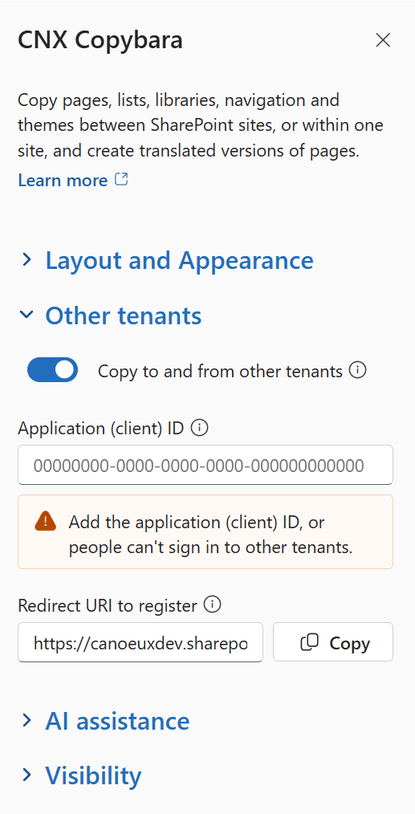
Leave Other tenants alone to copy only within your own organization. To copy to or from the sites of another Microsoft 365 organization, expand it and turn on Copy to and from other tenants.
Available options
Application (client) ID
Signing in to another organization needs an app registration of your own. In the Microsoft Entra admin center:
- Register an app for Accounts in any organizational directory.
- Add the Redirect URI to register shown in the pane as a Single-page application redirect URI.
- Give it the delegated SharePoint > AllSites.FullControl permission.
- Paste its Application (client) ID into the box. It's checked as you type.
Important: An administrator of each other organization approves the app once before anyone there can sign in. The sign-in form offers the approval link when it's needed.
Redirect URI to register
A blank SharePoint page on your own tenant, filled in for you. Select Copy and paste it into the app registration; nothing is ever shown on that page.
Step 6: Configure the AI assistance section
Expand AI assistance. Enable AI features turns translation on or off; everything else Copybara does works without it.
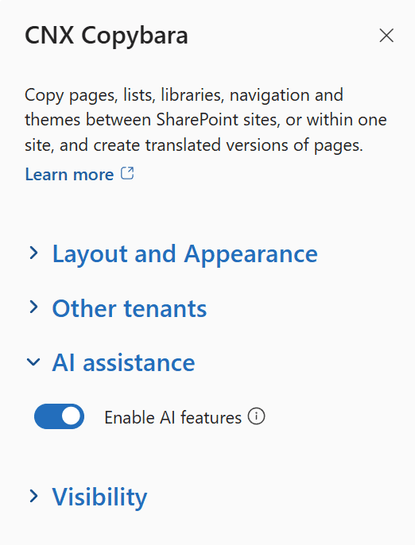
Important: AI features need the SharePoint AI Gateway, which an administrator connects once for the whole organization with CNX Azure AI Setup. Until it's connected, the AI options stay hidden, and page editors see a message that explains why. Nothing is sent to AI until an editor selects an AI action.
Step 7: Publish the page
Select Publish (or Republish). Copybara opens on the site it's published to, ready to copy from there, and anyone who can edit the destination site can start a copy.
Limits
Who can copy what
What you may copy to a site comes from your own permissions there, and the TO card spells it out. A missing right disables Review and copy on that tab and explains why.
- Pages need Edit or higher on the destination site.
- Lists and libraries need Manage lists, which site owners and designers have.
- Navigation and Theme need Manage web, which site owners have.
- The source site only needs read access.
What a copy doesn't bring
- Unique permissions, workflows and Power Automate flows, alerts and content type definitions. Content types arrive as their columns.
- Classic wiki and web part pages: only modern pages are listed.
- Web parts that show content of another site by its own ID keep pointing there, unless that content was copied in the same run.
- Across organizations, managed metadata can't follow a copy, and people are matched by email only. Values that can't be matched are left empty and listed in the results.
What Undo can put back
- Undo can't change back list items a copy replaced, nor files it replaced in a library that doesn't keep versions. The review warns before such a copy, and offers Keep both instead.
- Start over reloads the page: what was already copied stays on the sites, but it can no longer be undone from Copybara.
Copies run in your browser
Copies run in the browser tab, one at a time, so very large libraries take a while and leaving the page stops them. The browser asks before you go. Searching for sites needs a signed-in person, but a pasted address always works.
AI translation
- AI can make mistakes: read a translated page before you publish it.
- Only text is sent: titles, descriptions, text web parts, section names, image alt text and captions, and the text of the CNX web parts on the page. Colors, addresses, lists and people are settings and are never sent.
- Parts the AI couldn't translate keep their original text and are counted in the notes of the copy.
Examples
A new department site
Copy the pages, document library, navigation and theme of a site that already works, then edit the copy, instead of building the same site again from scratch.
Your own site templates
Keep a model site with the pages and lists every project needs, and copy it into each new site as it's created.
A site in another language
Copy the pages of an English site into a French one and let AI translate the text and the navigation link names on the way.
Moving between organizations
Sign in to another Microsoft 365 organization and copy content to or from its sites, after a merger or when handing a project over to a client.
Best practices
- Copy to a test site first: review the result, then undo it and run the real copy with the options you settled on.
- Copy the lists a page reads from before the page itself, so the links and web parts it holds find them on the destination.
- Leave Point links to the destination turned on, or the copied pages keep sending people back to the site you copied from.
- Keep copies as drafts until you've checked them, especially translated pages, and publish them afterwards.
- Undo a copy from Your copies while the page is still open: once you start over or leave, Copybara can no longer take it back.
Release notes
Initial release
November 2026
- First release, included in CanoeUX SharePoint Web Parts Essentials.
Support
Have a question about CNX Copybara, or found something that doesn't work as expected? Contact CanoeUX and tell us what you expected to happen and what happened instead. Screenshots help, and for display or access issues, so does the output of CNX User Diagnostics.
Planning a wider intranet? Explore our SharePoint and digital workplace services.
Free of charge
Support CanoeUX
CanoeUX SharePoint Web Parts Essentials is provided free of charge.
If these web parts helped you save time or deliver value to your organization, consider supporting future development.