SharePoint Web Parts Essentials
 CNX SharePoint Control+
See who can access what on a SharePoint site, uncover access risks and fix them where you find them.
Overview
CNX SharePoint Control+ helps site owners and SharePoint administrators answer a question that's surprisingly hard to answer in SharePoint: who can access what on this site? It assesses the site's groups, members, permissions and sharing links, including the people inside Microsoft 365 and security groups, and brings the results together in one dashboard with a security score.
Each risk it finds comes with a plain-language explanation and a recommended action, and you can fix most problems where you find them: remove people who no longer need access, change permission levels, restore inheritance or remove sharing links, without opening SharePoint's classic permission pages.
Save each assessment to track your progress, compare any two to see exactly what changed, and export the results to Excel or PDF for audits and access reviews. The web part runs in your browser with your own permissions, and works only with SharePoint and Microsoft Graph.
Features
Security score and site overview
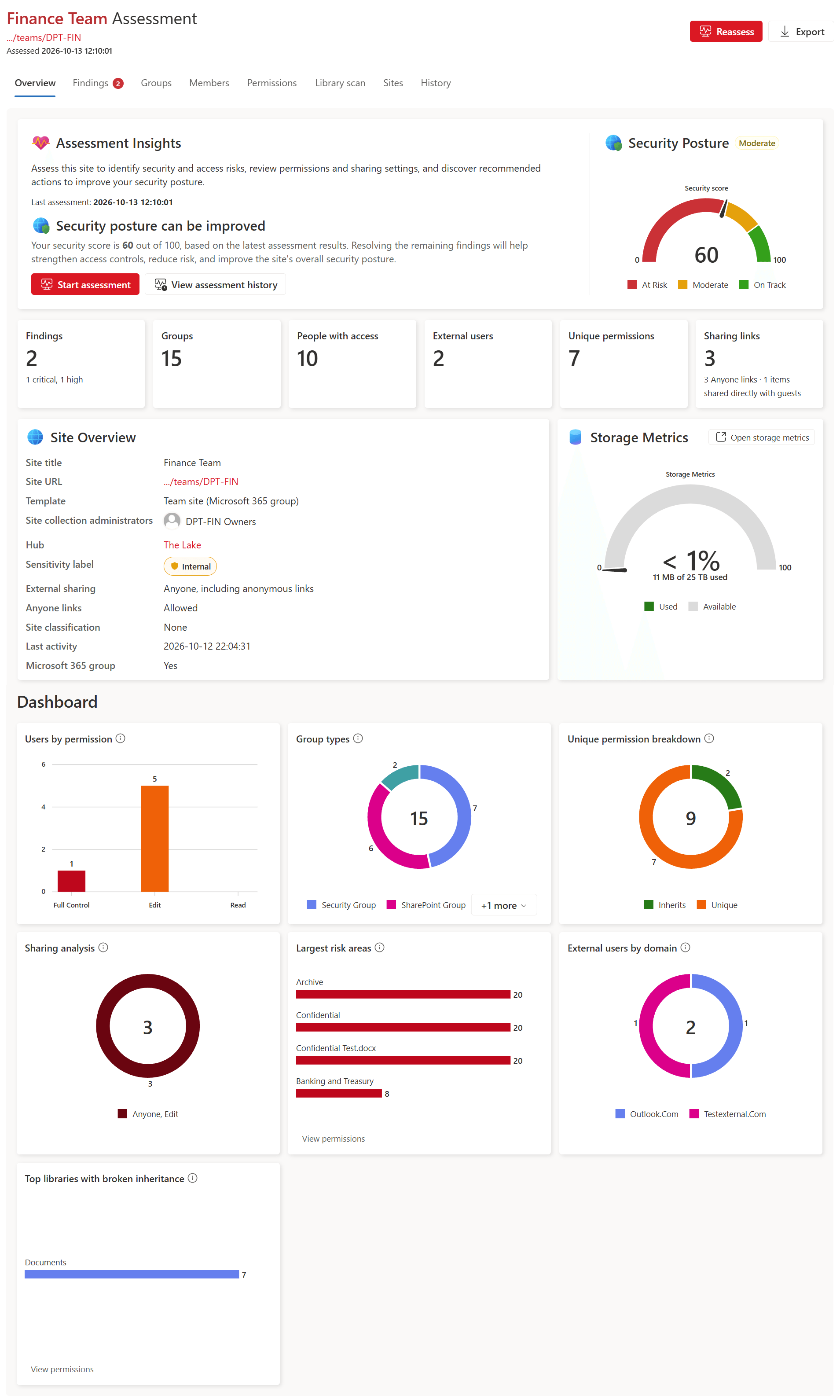
The Overview tab gives the site a security score out of 100, rates its security posture from at risk to on track, and suggests what to do next. Key figures (findings, groups, people with access, external users, unique permissions and sharing links) sit next to the site's details, its storage use and a dashboard of charts that shows where access is concentrated.
Findings and recommendations
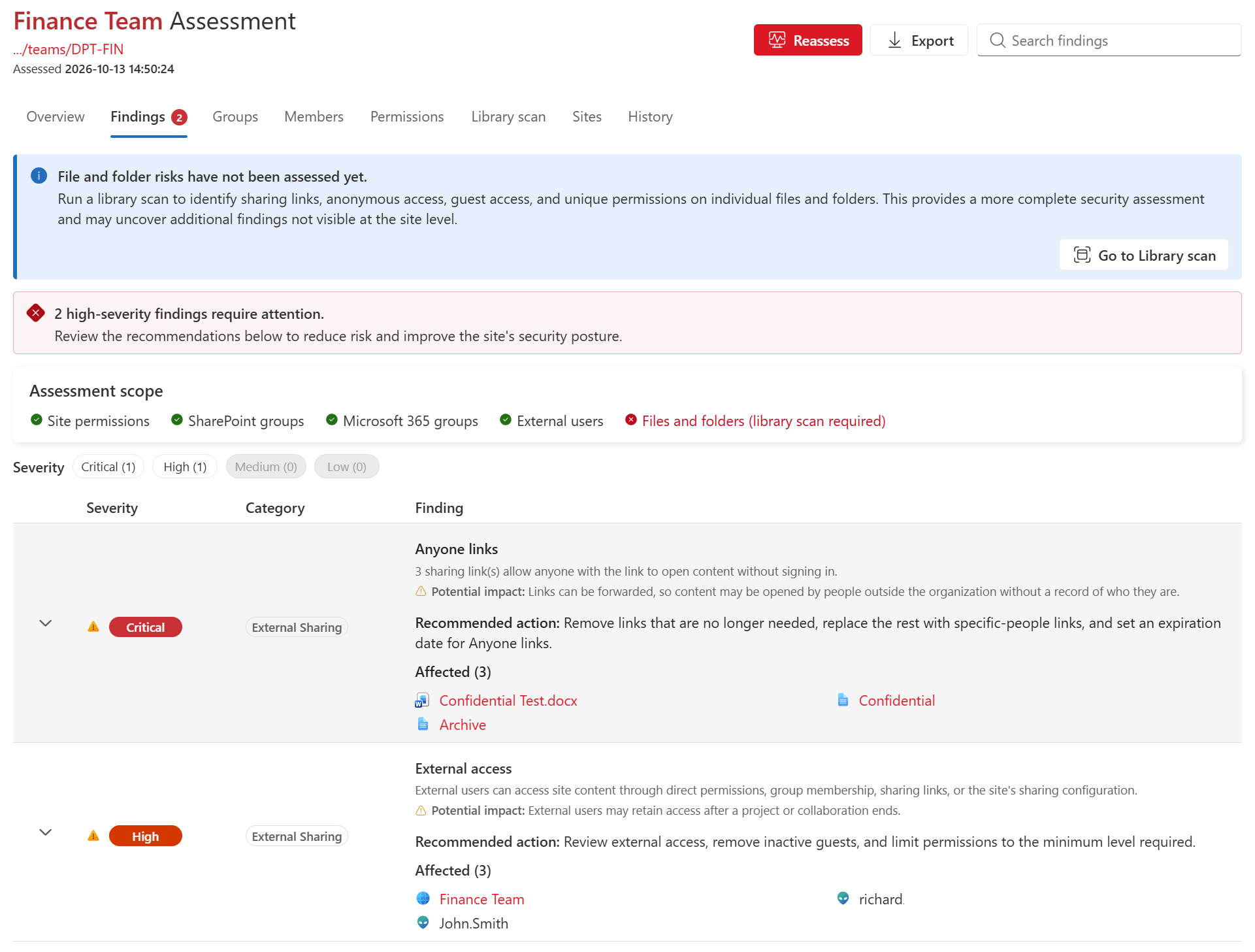
The Findings tab lists each risk the assessment found, from critical to low: content open to everyone, Anyone links, external access, too many unique permissions, too many people with Full Control, orphaned users and empty groups. Select a finding to see its potential impact, the recommended action and every affected item. Each finding lowers the score: 25 points if it's critical, 15 if high, 8 if medium and 3 if low.
Groups and their members
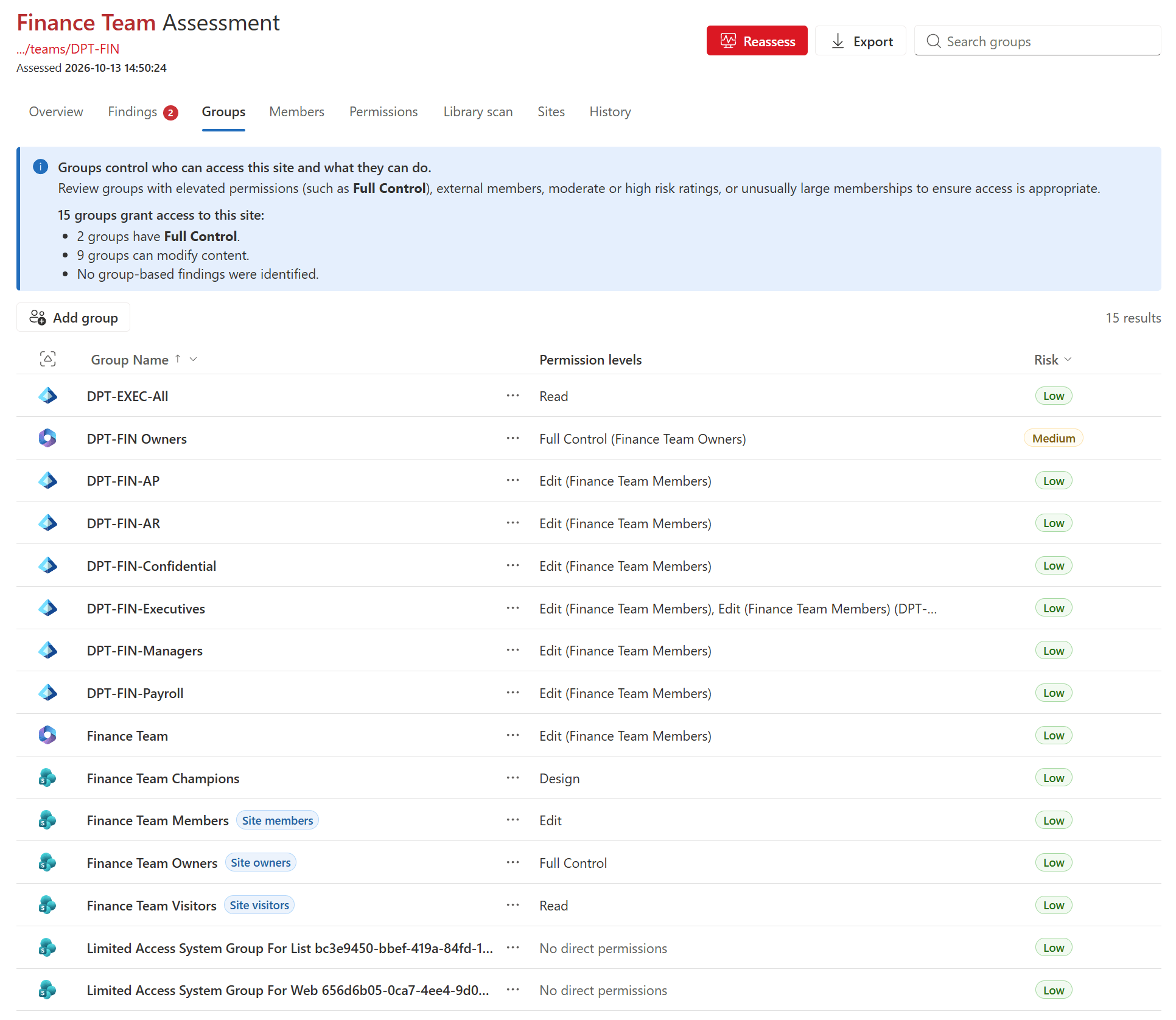
The Groups tab lists every group with access to the site (SharePoint groups, Microsoft 365 groups and security groups) with its permission levels and a risk rating. Open a group to see its owners and members, including the people in nested groups. You can create and delete SharePoint groups, add and remove their members and change their owner; Microsoft 365 and security groups are managed in Microsoft Entra ID, so they're shown read-only.
Everyone with access
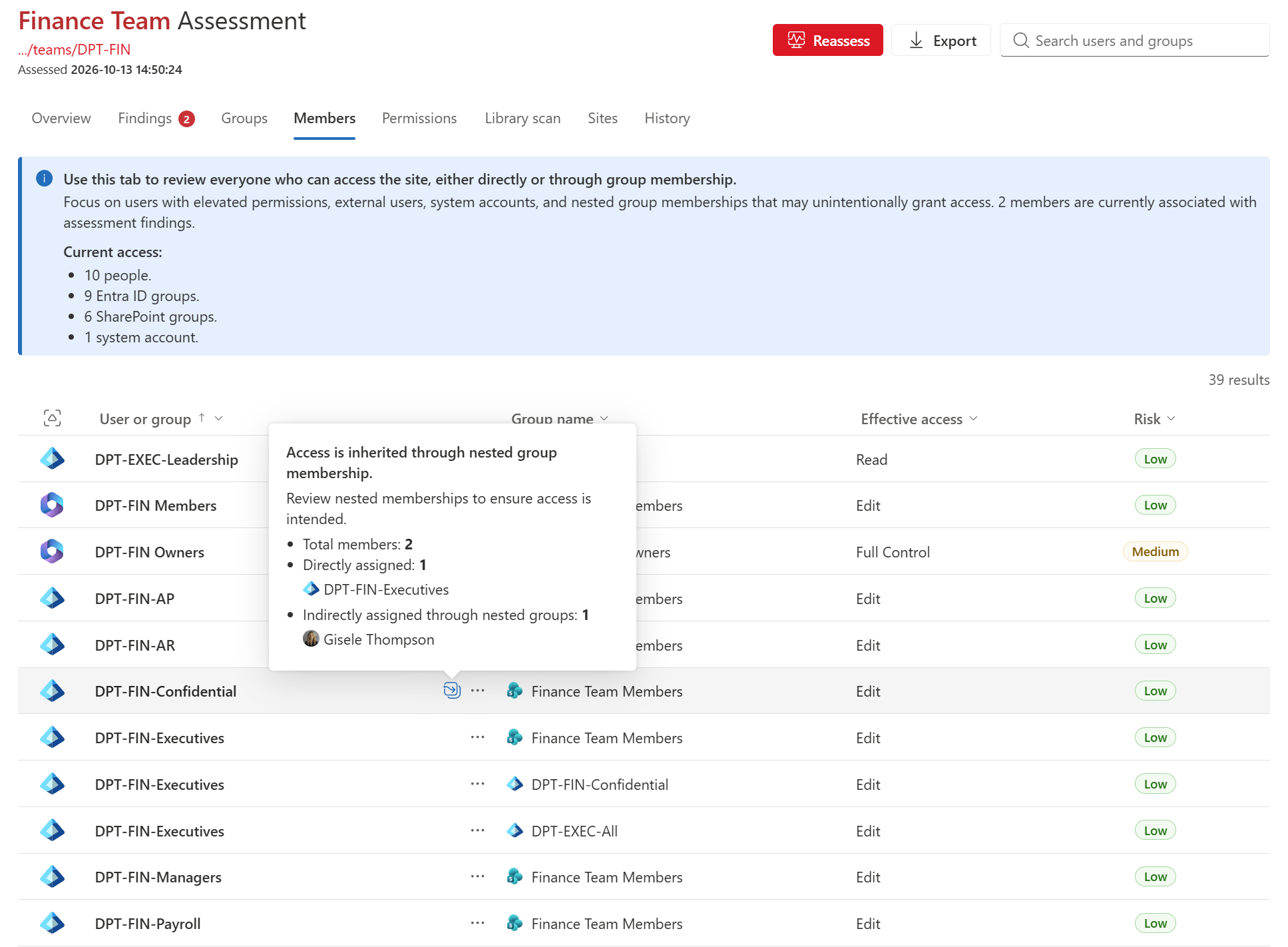
The Members tab shows everyone who can access the site, directly or through a group, with their effective access and a risk rating. Nested memberships are expanded, so you can see exactly how each person gets their access. Open a person to see every group they belong to on the site and anything granted to them directly.
Permissions and inheritance
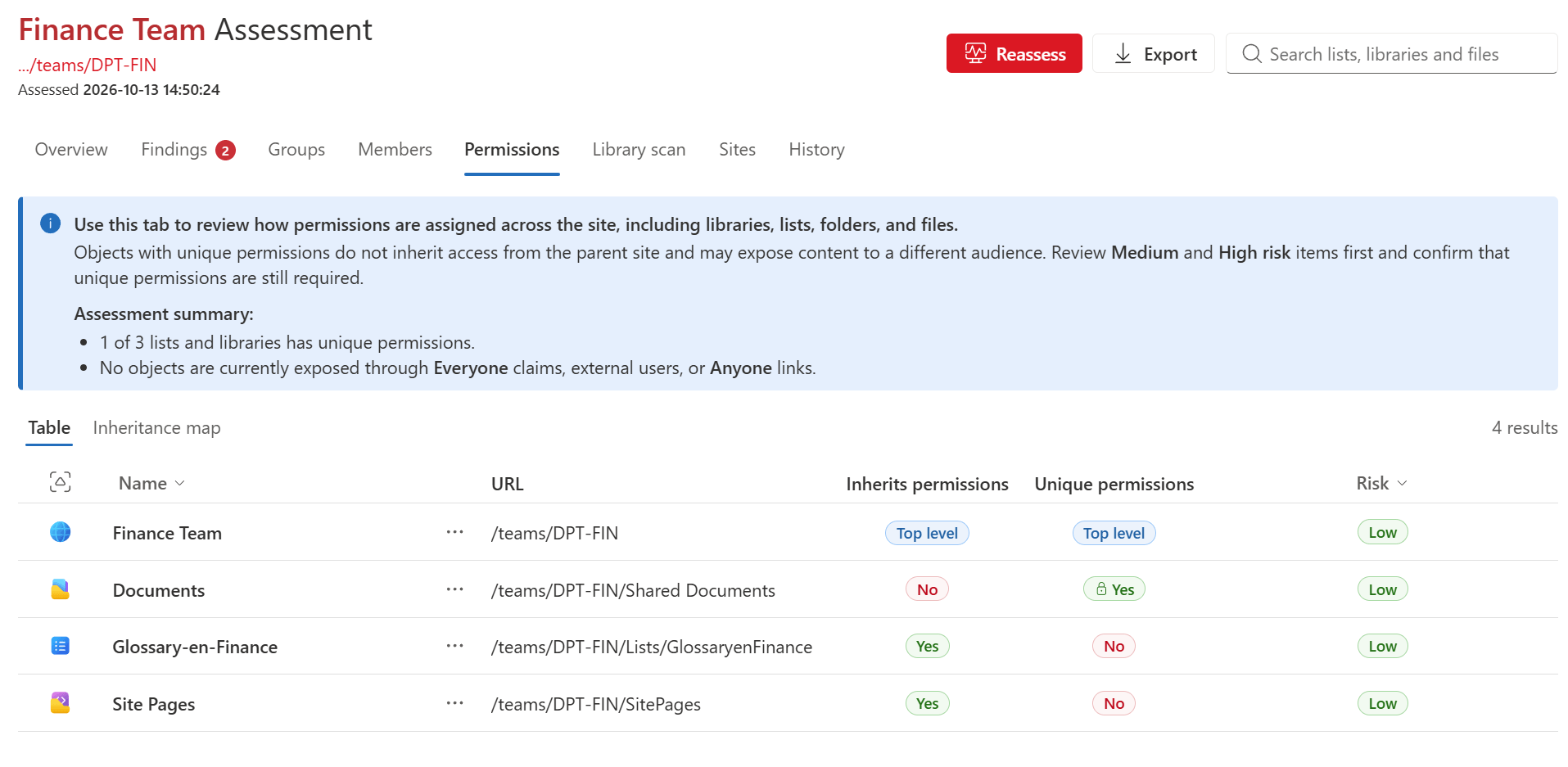
The Permissions tab shows how permissions are set across the site: which lists and libraries (and, after a library scan, which folders and files) inherit their permissions and which have their own. Switch to the Inheritance map for a visual view. From here you can grant access, change permission levels, remove access, and stop or restore inheritance.
Library scan
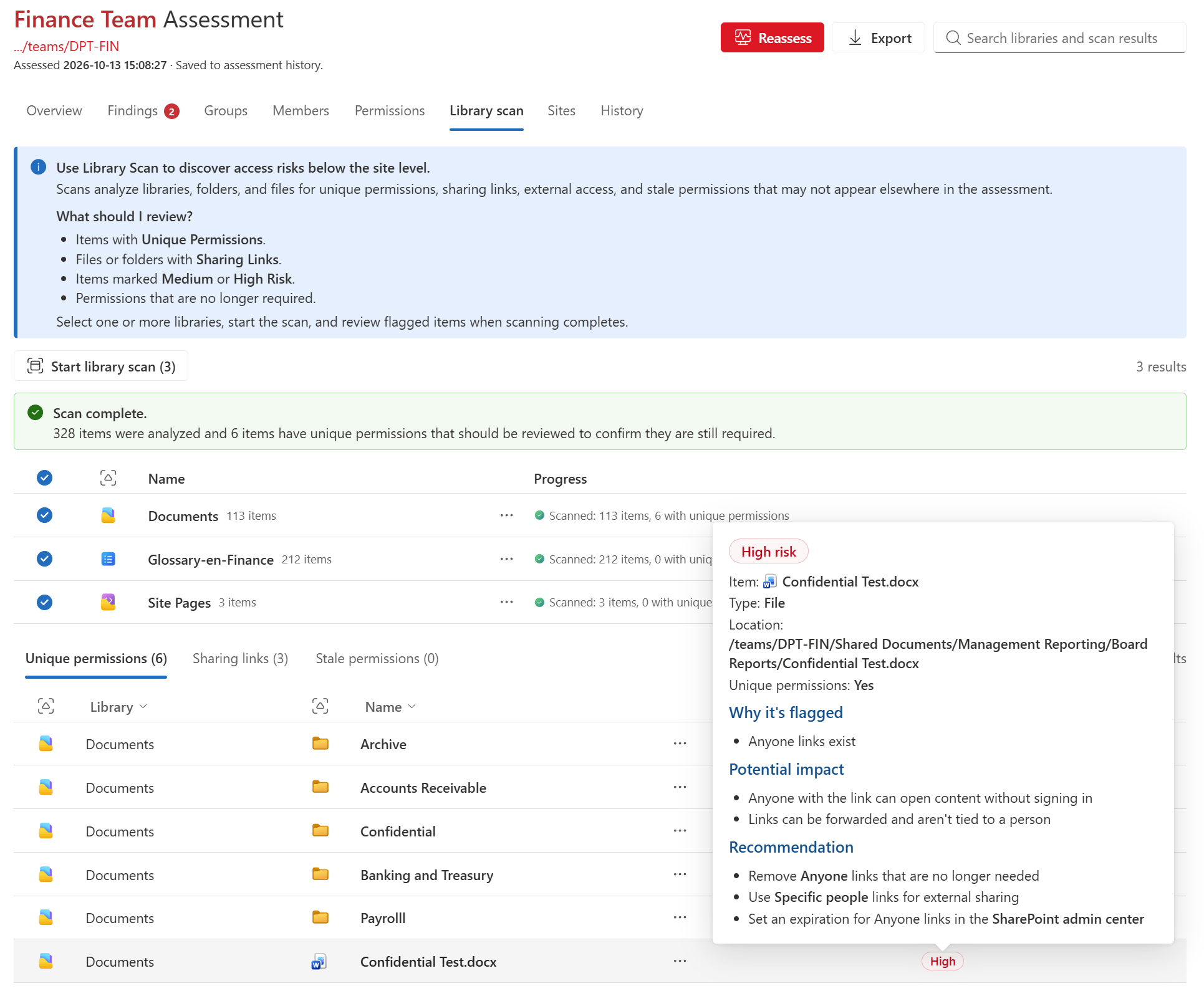
A Library scan looks below the site level, at the folders and files inside libraries and lists. It finds items with unique permissions, sharing links (including Anyone links, which open content without signing in) and stale permissions, such as unused links, empty groups and accounts that no longer exist. Each flagged item explains why it's flagged and what to do about it, and you can remove sharing links and stale permissions right from the results.
Sites across your tenant
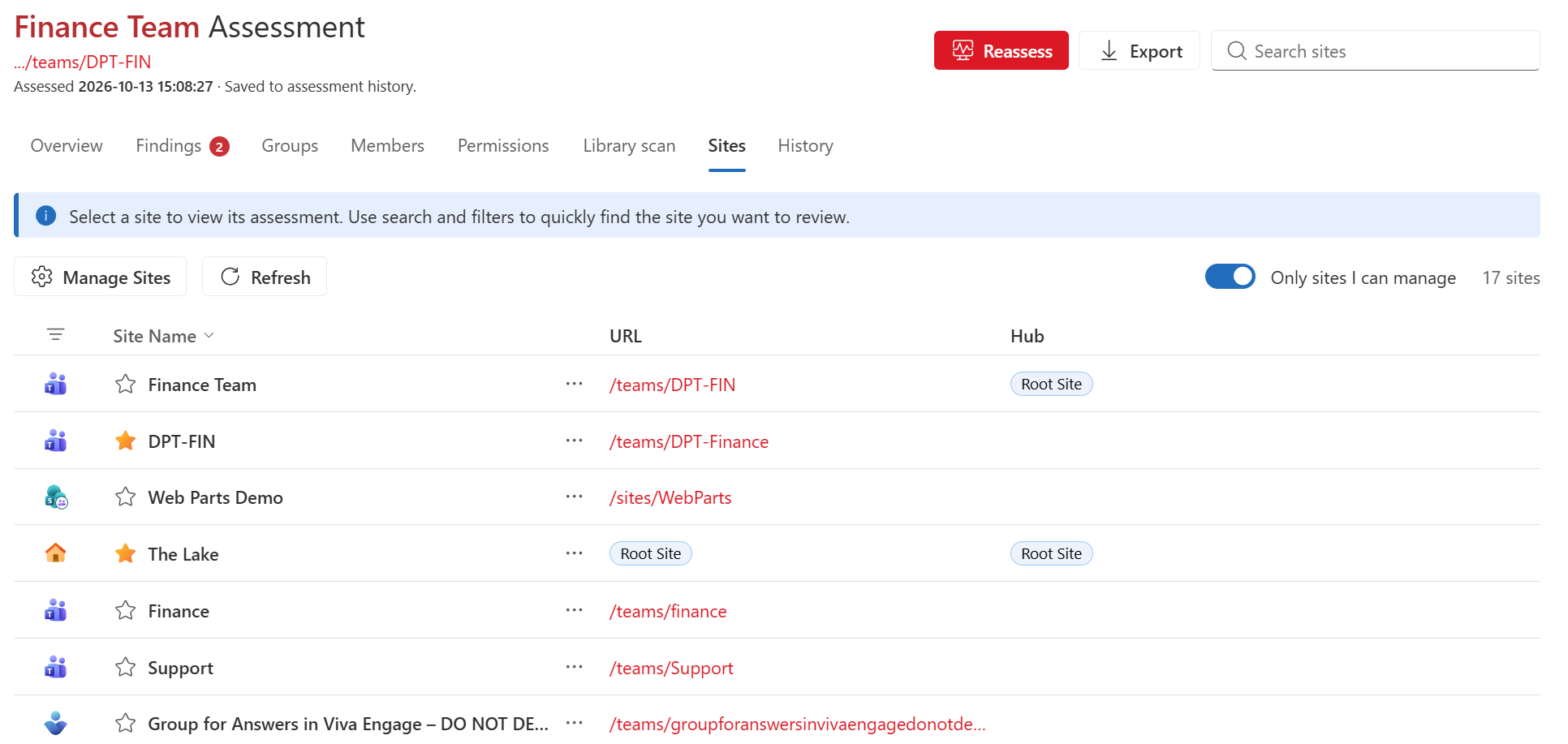
The Sites tab lists the sites in your tenant, with search, filters and favorites. Turn on Only sites I can manage to focus on the sites you can assess, then open a site's details, or its assessment, without leaving the page.
Assessment history and comparison
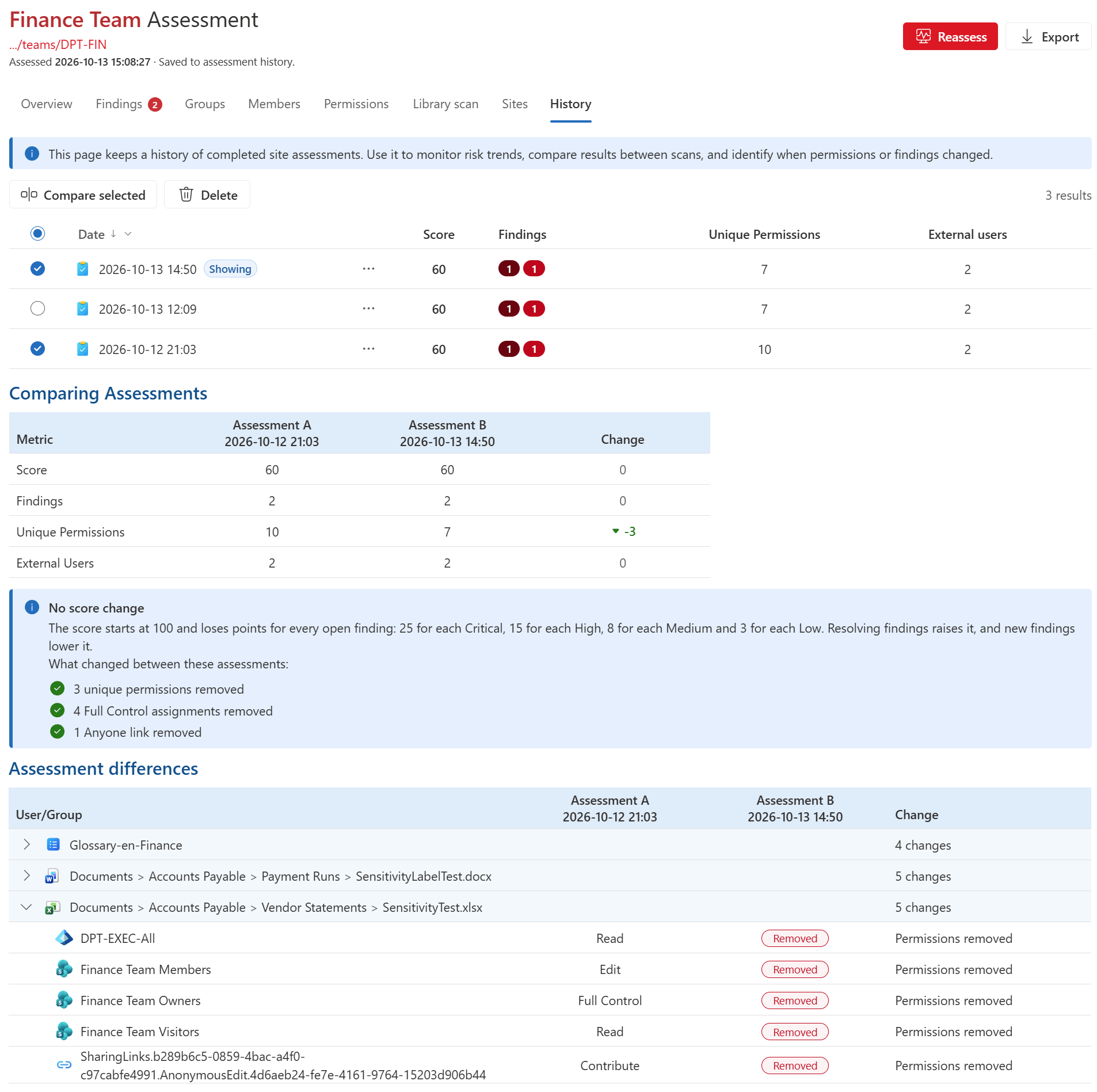
When Save each assessment is on, the History tab keeps a record of completed assessments, with their score, findings, unique permissions and external users. Select two assessments and then Compare selected to see how the score changed and why, and exactly which permissions were added, changed or removed.
Excel and PDF exports
Select Export to download the results as an Excel workbook, with a filterable sheet for each part of the assessment, or as a PDF report with the same information in a printable layout.
Configuration
After the CanoeUX SharePoint Web Parts Essentials package has been deployed to your SharePoint tenant, you can add CNX SharePoint Control+ to any modern SharePoint page and configure it to start assessing your sites.
Step 1: Edit the page
Go to the SharePoint page where you want to add the web part, and select Edit.
Important: The Edit button is in the upper-right corner of the page. If you don't see it, you don't have permission to edit the page: ask the site owner or a site administrator for edit permissions.
Step 2: Add a new web part
Hover over the section where you want the web part to appear, and select + Add a new web part.
Step 3: Select CNX SharePoint Control+
In the web part toolbox, search for CNX SharePoint Control+, and select it to add it to the page.
Step 4: Open the property pane
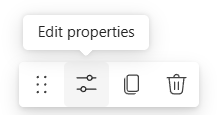
Select the web part, and then select Edit properties in its toolbar.
The property pane has three sections: Title, Assessment scope and Assessment history. SharePoint may add its own sections, such as Visibility, below them. To learn more about an option, hover over its information icon.
Step 5: Configure the Title section
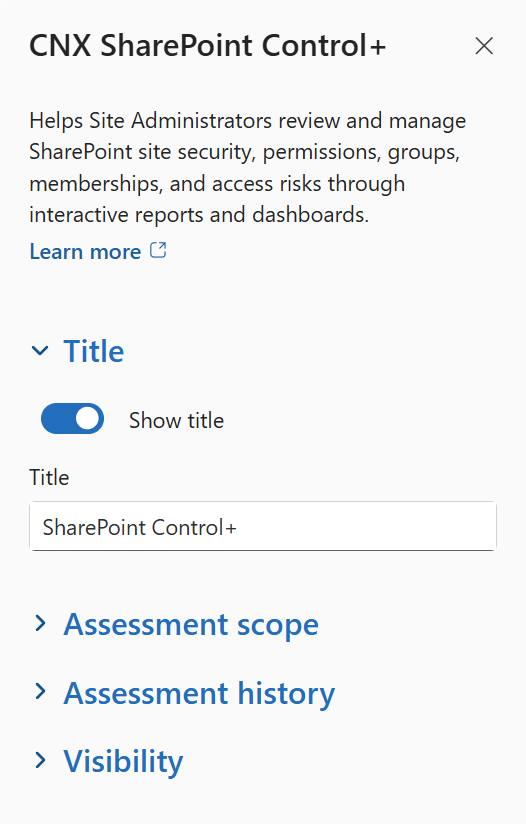
Expand Title to choose whether a heading appears above the web part.
Available options
Show title
Turn Show title on to display a heading above the web part. It's off by default.
Title
Enter the heading to display. The box appears when Show title is on, and its default text is CNX SharePoint Control+.
Step 6: Configure the Assessment Scope section
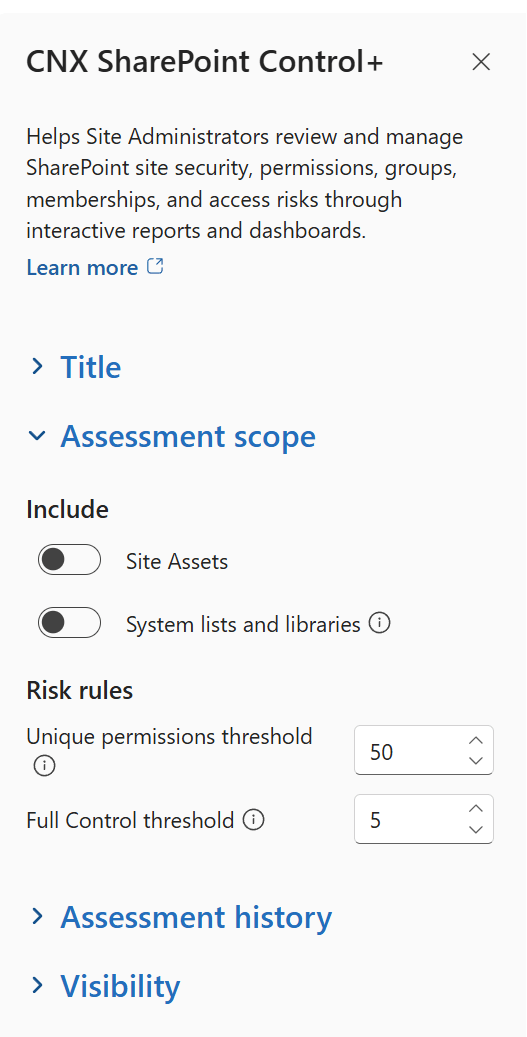
Expand Assessment scope to choose what the assessment includes and when its risk rules raise a finding.
Available options
Include
- Site Assets adds the library that holds the site's images, scripts and branding files.
- System lists and libraries adds the lists and libraries SharePoint manages behind the scenes: infrastructure, configuration and administrative components. Many of them support legacy and classic SharePoint functionality and aren't relevant to most assessments of business content. Turn it on only when you're assessing site customizations, branding assets, templates, web parts, taxonomy or other site-level configuration.
Both are off by default.
Unique permissions threshold
Raises the Too many unique permissions finding when more lists, libraries, folders and files than this have unique permissions instead of inheriting them. The finding is rated medium, or high above five times the threshold.
The default is 100, and you can set 10 to 1,000. Typical thresholds are 50 (conservative), 100 (balanced) and 250 (aggressive).
Full Control threshold
Raises the Many people have Full Control finding, rated high, when more users and groups than this have Full Control. The site owners group and site collection administrators aren't counted.
The default is 5, and you can set 1 to 50. Typical thresholds are 3 (conservative), 5 (balanced) and 10 (aggressive).
Step 7: Configure the Assessment History section
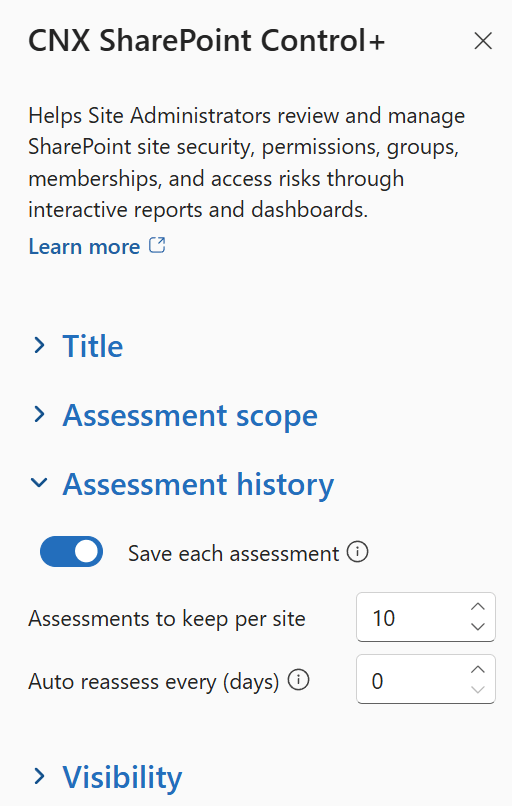
Expand Assessment history to choose how assessments are saved and how often the site is reassessed.
Available options
Save each assessment
Saves each completed assessment in lists on this site whose names start with “Assessment-”, so you can compare assessments over time on the History tab. Only site owners can read these lists. It's on by default.
Assessments to keep per site
The number of saved assessments to keep for each site, from 1 to 50 (10 by default). Once an assessment has been saved in full, older ones beyond this number are sent to the site recycle bin.
Auto reassess every (days)
Starts a new assessment when the most recent saved one is older than this number of days, up to 90. It runs the next time someone who can assess the site opens the page; it isn't a background schedule.
The default, 0, turns automatic assessments off.
Step 8: Approve API access
CNX SharePoint Control+ reads group members, site activity and usage reports through Microsoft Graph, so the package requests read-only permissions that an administrator approves once for your organization. If they've already been approved, skip this step.
- Open the SharePoint admin center, and then go to Advanced > API access.
- Under Pending requests, select a request from CanoeUX SharePoint Web Parts Essentials.
- Review the permission, and then select Approve.
- Repeat for each of the package's pending requests: Group.Read.All, Sites.Read.All and Reports.Read.All.
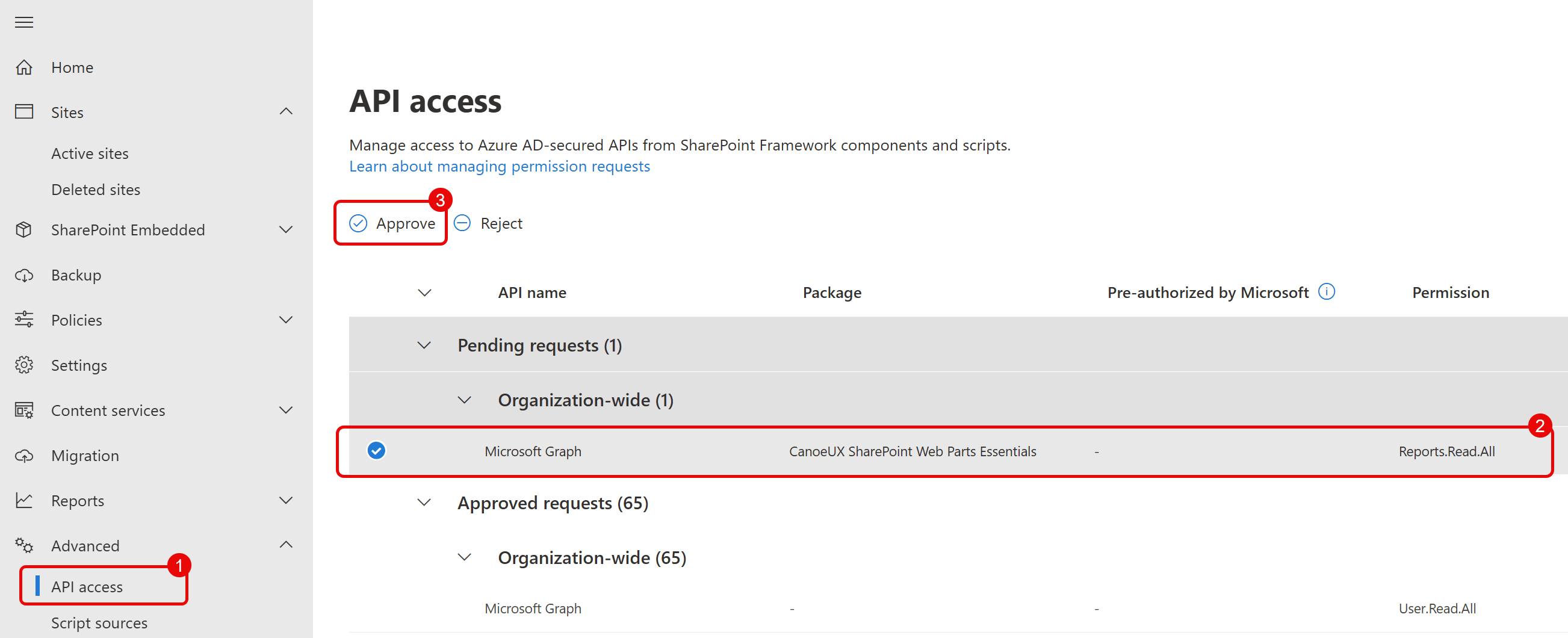
Until the requests are approved, assessments still run, but Microsoft 365 and security groups are listed without their members, as Members unavailable.
Step 9: Publish the page
- Back on the page that holds the web part, select Republish (or Publish, if the page has never been published) to save your changes and make the page available.
- Check that the web part appears correctly on the published page.
CNX SharePoint Control+ is now configured and ready to use. Select Start assessment to run the site's first assessment.
Limits
Who can use it
- To run an assessment, you need to be a site collection administrator, or to have both the Manage Permissions and Enumerate Permissions permissions on the site. Site owners have both through Full Control.
- To make changes, such as adding members or removing access, you need the Manage Permissions permission.
- Everyone else sees only the Sites tab, with an explanation of why.
- Usage figures in a site's details also need a role that can read usage reports, such as Reports Reader. Without one, site analytics are shown instead, and the panel says so.
It runs in your browser
- Assessments and library scans run in your browser, with your permissions. Keep the page open until they finish: if you leave, you're asked to confirm, and the work in progress is cancelled.
- A cancelled or failed library scan can't be resumed: scan the library again from the start.
- There's no background schedule, because SharePoint Online doesn't run web parts in the background. Auto reassess every (days) starts an assessment only when someone who can assess the site opens the page.
Large sites and libraries
- The assessment takes about the same time whatever the number of files, because it reads lists and libraries, not the items in them. Folder and file permissions, and where sharing links point, appear after a library scan.
- A library scan reads every item, so it takes longer as libraries grow. Libraries are scanned one at a time, and the Progress column shows how far each scan has got.
- When SharePoint is busy, it slows down requests (throttling) and the web part retries them. If a library still can't be read, it's marked Failed and the scan moves on to the next one: scan it again later, ideally outside business hours.
- What slows things down most is the number of items with unique permissions, not the total number of items. Tens of thousands of them make the Permissions and Library scan tabs slow to open, sort and filter, and make exports slow.
Saved assessments
- Saved assessments are kept in lists on the site whose names start with “Assessment-”. Only the site owners and the person who ran the assessment can read them. If the site has no owners group, the lists keep the site's permissions, so restrict them yourself.
- Saving a large assessment takes time and can be throttled: 20,000 items with unique permissions, each shared with five people or groups, make about 100,000 records. If some records can't be saved, a message explains why, and Save again completes the saved copy.
- A comparison reads up to 50,000 permission records from each assessment. Changes beyond that aren't shown.
- Older assessments that are no longer kept, and assessments you delete, go to the site recycle bin. They count against the site's storage until the recycle bin is emptied (after 93 days by default).
Other limits
- Microsoft 365 and security groups: up to 10,000 members per group and 5 levels of nested groups are read, so counts for larger groups are minimums.
- Orphaned users: up to 150 people are checked in each assessment.
- Sharing links before a library scan: up to 1,000 shared files and folders are named. The others are listed by link only until their library is scanned.
- Sites tab: up to 200 sites are listed. In larger tenants, use the search box.
- Lists and groups: up to 5,000 lists and libraries, and 5,000 SharePoint groups, per site.
- Exports: Excel and PDF only. Each table in the PDF report shows up to 2,000 rows; the Excel workbook includes them all.
Examples
Access reviews
Assess each site before a scheduled access review, export the PDF report as a record, and compare it with the previous assessment to show what changed.
Getting ready for Microsoft 365 Copilot
Copilot can surface any content a person has access to. Find content shared with everyone or through Anyone links, and tighten access before you roll Copilot out.
Project close-out
When a project ends, remove the guests whose work is done, delete sharing links nobody needs and restore inheritance where unique permissions are no longer required.
Site handover
When a site changes owners, give the new owner a clear picture of who has access and why, and a saved assessment to measure their progress against.
Best practices
- Add the web part to a page that only site owners use: it's an administration tool, and other visitors see only its Sites tab.
- Approve the package's Microsoft Graph permissions, so Microsoft 365 and security groups are assessed with their members.
- Run a library scan after the first assessment: sharing links and the permissions of individual files and folders are found only by a scan.
- Work through the findings from critical to low, then reassess to confirm that the score has improved.
- Keep Save each assessment turned on and reassess regularly, so you can compare results over time.
- Scan very large libraries one at a time, or a folder at a time, outside business hours.
Release notes
Initial release
Coming soon
- First release, included in CanoeUX SharePoint Web Parts Essentials.
Support
Have a question about CNX SharePoint Control+, or found something that doesn't work as expected? Contact CanoeUX and tell us what you expected to happen and what happened instead. Screenshots help, and for display or access issues, so does the output of CNX User Diagnostics.
Planning a wider intranet? Explore our SharePoint and digital workplace services.
Free of charge
Support CanoeUX
CanoeUX SharePoint Web Parts Essentials is provided free of charge.
If these web parts helped you save time or deliver value to your organization, consider supporting future development.